
To enable real-world performance monitoring, slow-app attribution, and automated script deferral on your store, activate the TurboLoad Theme App Extension in your published Shopify theme.
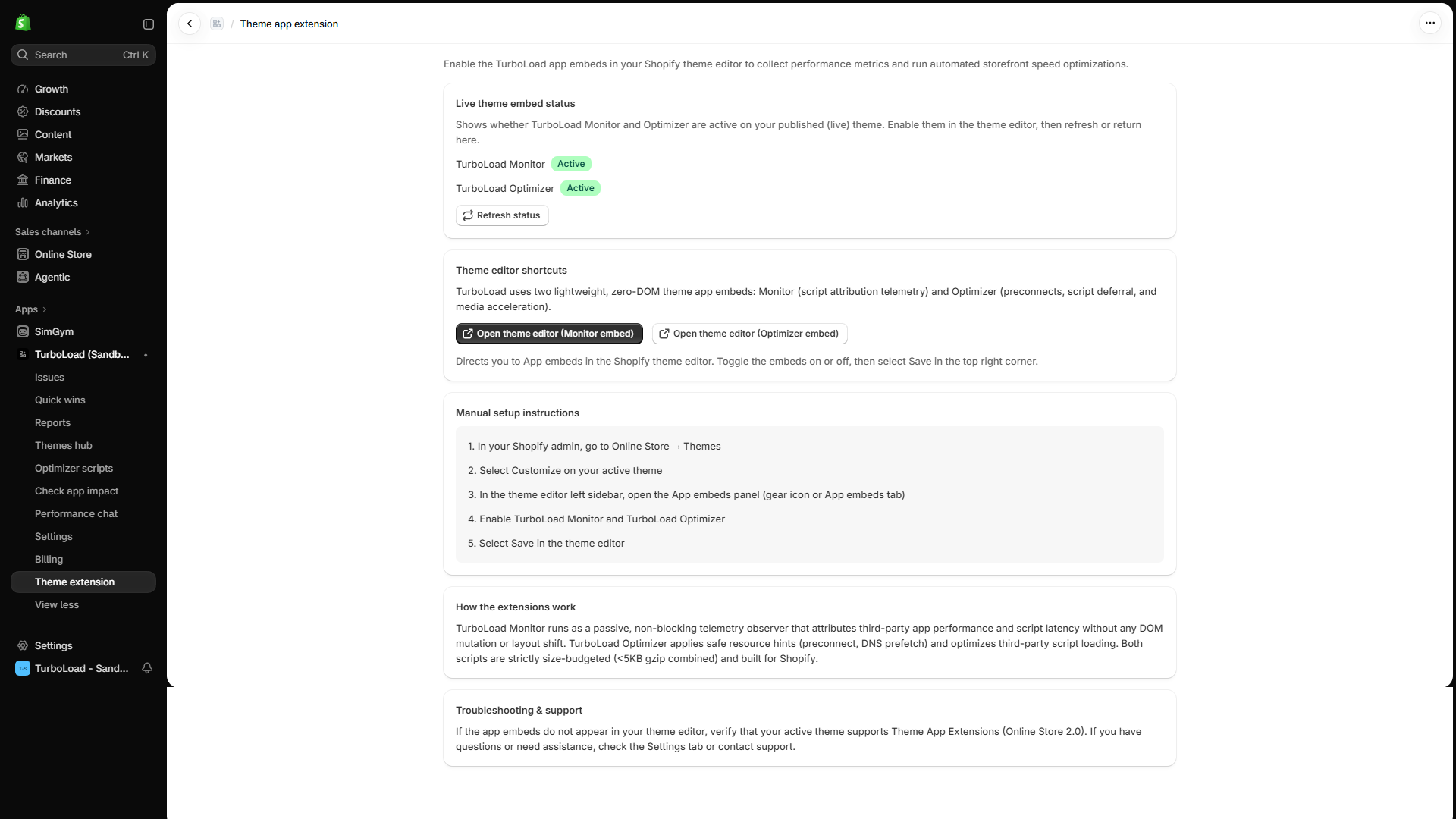
Shopify Theme App Extensions are the modern, secure standard for adding app functionality to your storefront. They inject zero permanent code into your Liquid files, guaranteeing that your theme remains pristine and conflict-free.
How do I activate TurboLoad on my Shopify theme? #
To activate TurboLoad, go to Shopify Admin → Online Store → Themes → Customize, click the App Embeds tab on the left menu, toggle TurboLoad Monitor and TurboLoad Optimizer to ON, and click Save. TurboLoad will immediately begin monitoring storefront performance and applying active optimizations without affecting shopper experience.
App Embed Blocks Overview #
TurboLoad provides two complementary theme app embeds:
- TurboLoad Monitor (Core / Telemetry):
Measures third-party app script execution, long tasks, and resource delivery times without affecting shopper speed. - TurboLoad Optimizer (Optimization / Acceleration):
Enables intelligent deferral of non-critical third-party marketing scripts, image preconnecting, and critical asset preloading.
Step-by-Step Activation Procedure #
Follow these 4 simple steps to enable TurboLoad on your store:
Step 1: Navigate to the Shopify Theme Editor #
From your Shopify Admin dashboard:
- Go to Online Store → Themes.
- Locate your Current (Published) Theme.
- Click the Customize button.
Step 2: Open the App Embeds Panel #
- In the left-hand sidebar of the Theme Editor, click on the App Embeds icon (the third icon down, representing a modular puzzle block).
Step 3: Enable TurboLoad Embeds #
- Search for TurboLoad in the app embeds search bar.
- Toggle TurboLoad Monitor to the ON position.
- Toggle TurboLoad Optimizer to the ON position (recommended for script deferral and speed gains).
Step 4: Save Changes #
- Click the green Save button in the top right corner of the Theme Editor.
Instant Verification:
Once saved, return to Apps → TurboLoad. The status badge on your dashboard will update to Theme Extension: Active.
Frequently Asked Questions #
Why does TurboLoad show "Theme Extension: Inactive"? #
- Unpublished Draft Theme: Ensure you activated the embed on your currently published theme, not an inactive draft theme.
- Cache Refresh: It may take 1–2 minutes for the initial shopper beacon to register after enabling the embed. Open your storefront in an incognito browser window and refresh once.
Will the theme extension slow down my store? #
No. TurboLoad adheres strictly to Shopify's highest performance standards:
- Ultra-Lightweight: Both scripts are heavily compressed (combined under 6KB) so they consume virtually zero mobile bandwidth.
- Asynchronous & Non-Blocking: Scripts execute passively and never block DOM construction, customer clicks, or checkout rendering.
Developer & Agency Note: Zero Residual Footprint #
TurboLoad uses native Shopify App Embed technology exclusively:
- No Liquid Contamination: No custom snippets or hardcoded script tags are written into your theme templates.
- Clean Disconnect: Disabling or uninstalling the app immediately removes all script references without requiring manual theme code cleanup.
- Theme Version Control Friendly: Works seamlessly with Shopify GitHub integration, custom developer themes, and headless storefronts.